
Using Zelle® to Send Money
(actual experience will differ based on your banking app or website)
-
- Log into your banking app or website.
- Once logged in, click an option to pay, move or transfer money.
- If Zelle is available as a pay option, click it.
- If you are using Zelle for the first time, you may be asked to enroll in it. Follow prompts to enroll.
- To send money, click Send.
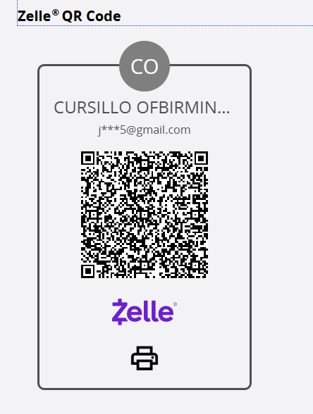
- You will need to add Birmingham Cursillo as a new recipient. Some banking apps or websites allow you to manually create a recipient. If so, you’ll need to enter some name information (the account’s actual Zelle name is “CURSILLO OFBIRMINGHAMALABAMA”, no space between the words OF, BIRMINGHAM and ALABAMA), and a U.S. mobile number, Email or Zelle® tag to create it. Enter the email address for the Birmingham Cursillo account, which is jeff.lee1595@gmail.com. Be careful not to misspell this email address when entering it into Zelle. Some banks allow you to scan a QR code to create a recipient. Below is the QR code for the Birmingham Cursillo account. Please note that some banks (including USAA) are very sensitive to Zelle fraud transactions. If this is the case with your bank, be aware it may reject your Zelle payment, so you may have to use other payment methods like cash or check.
-
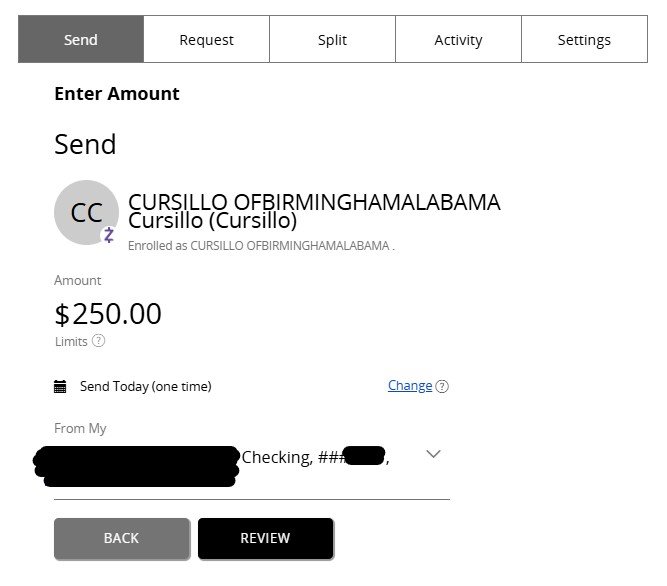
- Continue sending your money after creating/selecting the Birmingham Cursillo account, it will look something like the screenshot below. Click Next or Review to go the next screen.
-
- On the Review screen, review the details for the payment to ensure accuracy. There may be an optional Message or Reason field like the screenshot below. Enter your name and why you’re making the payment (“DONATION”, “TEAM ROOM AND BOARD”, etc.) into this field. Click Pay, Schedule or Submit to make your payment.
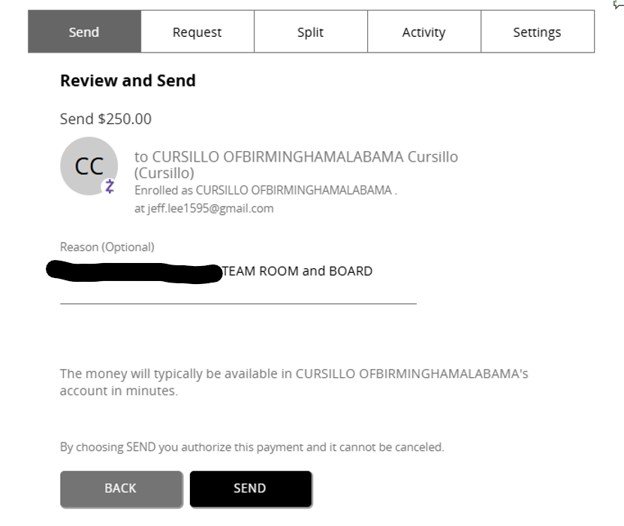
- You may be prompted to agree to Zelle payment terms before an initial payment is made.
- After agreeing to payment terms, your payment is made.